
How To Print A PDF Online
PDF is the safest format to send to a printer. Here is how to check yours and get it produced correctly the first time.
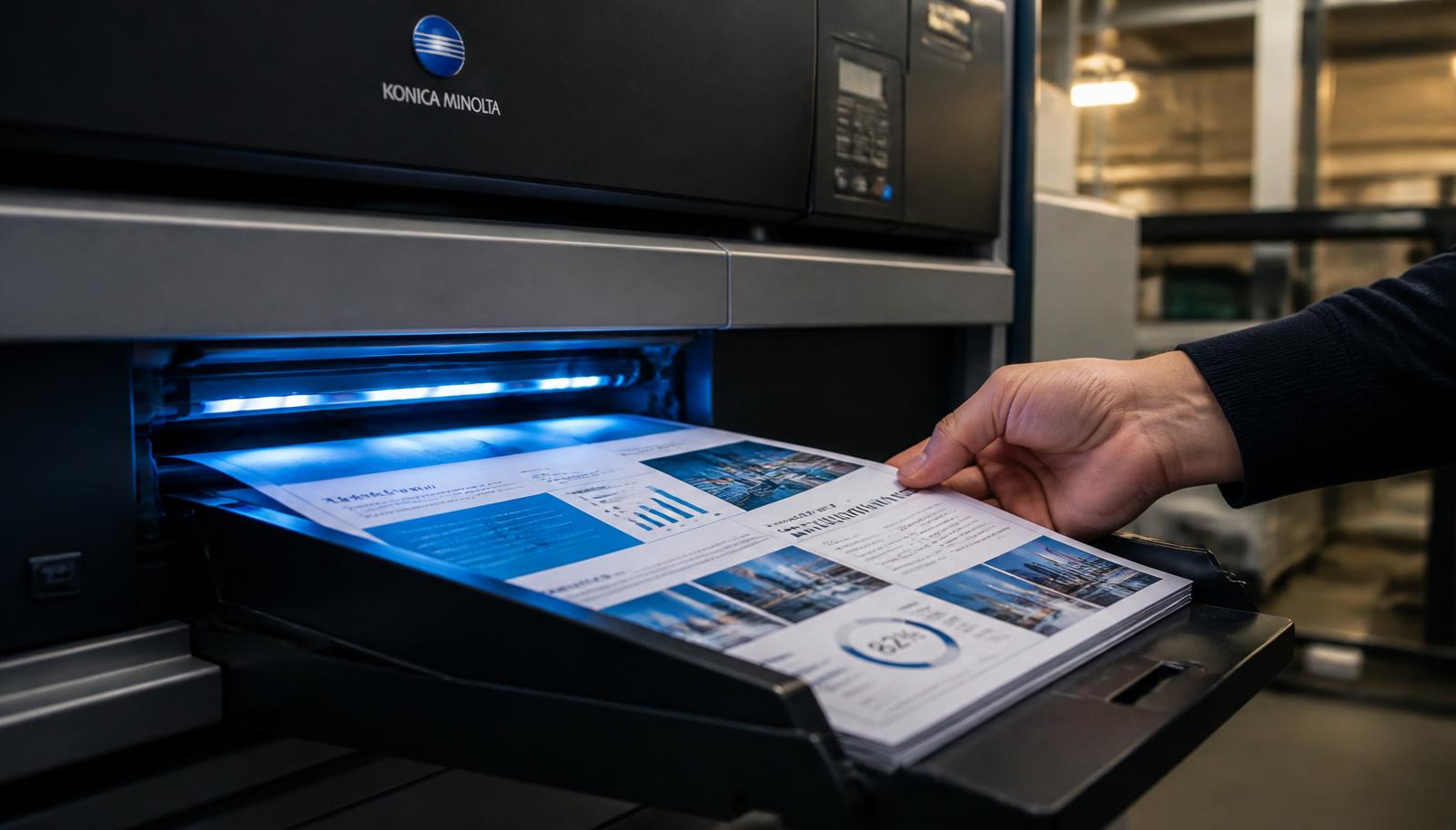
PDF exists precisely so that a document looks the same everywhere. Fonts, images, spacing and page breaks are locked into the file, which is why every professional printing workflow asks for one. If you can turn your document into a PDF before uploading, you have removed the most common source of printing surprises.
That said, a PDF can still carry problems: the wrong page size, a colour space that prints darker than the screen suggests, a file so heavy it fails to upload, or pages rotated in a way you did not intend. All of these are visible in a two minute check.
This guide covers that check, then the ordering decisions that follow.
Check The Page Size First
Open the file and look at its document properties. In most readers this is under File, then Properties, and it shows the page dimensions. A4 measures 210 by 297 millimetres and is the standard for documents in India. If your PDF was created from a US template it may be Letter size, 216 by 279 millimetres, which is wider and shorter.
Printing a Letter sized PDF onto A4 paper means it is either scaled slightly or shifted, and in a document with tight margins that can clip a header or footer. If you see Letter, re-export from the source document with the page size set to A4 before uploading.
Reduce A File That Is Too Heavy
The upload limit is 150 MB, and almost every PDF that exceeds it does so because of embedded photographs or scanned pages saved at very high resolution. Text alone is tiny; a 400 page text PDF is often under 5 MB.
The fix is to re-export with image quality set for print rather than archive. In Word, use Save As PDF with the standard publishing option instead of the maximum quality option. In a PDF editor, use the reduce file size or optimise function. Printed output is limited by the press, not the file, so a sensible reduction is invisible on paper.
Decide The Page Range
You do not have to print an entire PDF. If your 260 page reference file only needs chapter four, note the exact page range in your order and only those pages are produced and billed. Read the range from the PDF reader's page counter rather than from printed page numbers, because front matter often makes the two differ.
If you need several separate ranges from one file, list them all. It is far cheaper than printing the whole document and discarding most of it.
Choose Colour Mode And Sides For A PDF
Look through the PDF and note which pages actually contain colour. A dissertation with four colour figures should be ordered in mixed mode, not full colour. A scanned document that appears slightly grey is usually best printed in black and white, which cleans up the appearance rather than reproducing the grey cast.
For sides, remember that a PDF exported for double side printing sometimes includes deliberately blank pages so chapters start on the right. Leave those blanks in the file; removing them will shift every subsequent chapter opening to the wrong side.
Place The Order
Open the upload printout page, tap the upload area, and choose your PDF from your device. The file name, type and size appear on screen so you can confirm you selected the right document, and you can change or remove the file before continuing.
Then set colour mode, sides, total pages and copies. The estimate updates as you go. Submit the request and you receive an Order ID; we confirm the final amount and, if you want delivery, the courier charge to your pin code before printing.
How To Place A Printing Order With Us
The same six steps apply to every document covered in this guide.
1. Upload Document
Open the upload printout page and tap the upload area. Your device file picker opens and you can select a PDF, DOC, DOCX, JPG, JPEG or PNG file up to 150 MB. The file name, type and size are shown back to you, and you can change or remove the file before continuing.
2. Select Printing Options
Choose black & white, colour or mixed mode, and single side or double side. Mention paper weight or A3 pages here if your document needs them.
3. Enter Total Pages
Read the page count from your PDF reader rather than estimating it, and give an exact page range if only part of the document should be printed.
4. Enter Number Of Copies
There is no minimum. One copy is a valid order, and so is a run of several thousand. Copy count is what decides whether digital or offset production is cheaper for you.
5. See Estimated Price
The order summary combines pages, sides, colour mode and copies into a live estimate so you can compare options before committing to anything.
6. Submit / Request Order
Submit the request and an Order ID appears on screen. We then confirm the final amount and any delivery charge with you on 7289879398 before printing begins.
Binding, Collection And Delivery Options
Loose sheets suit drafts and anything destined for a ring file. Spiral and wiro binding lie completely flat, which is why they are the default for notes, lab records, manuals and working documents. Soft cover perfect binding gives a squared, printable spine and is the usual choice for project reports, proposals and paperbacks. Hardbinding, with foil spine text where required, is used for theses, archival record copies and premium editions. Card covers from 250 to 300 GSM, with matt or gloss lamination, can be added to any bound document and cost very little across a small number of copies.
Finished work can be collected free of charge from our counter at T-552 Baljeet Nagar, Patel Nagar, New Delhi, Delhi 110008. That is the fastest and cheapest option if you are in Patel Nagar, Baljeet Nagar, Shadipur, Karol Bagh, Rajinder Nagar, Ranjit Nagar, Kirti Nagar, Naraina or anywhere in Central or West Delhi, and it removes courier transit from your timeline entirely — which matters when a submission or a meeting is fixed. Everywhere else in India we dispatch by tracked courier. The delivery charge depends on parcel weight and your destination pin code, is paid by the customer, and is quoted before dispatch rather than added afterwards. Delhi NCR addresses in Gurugram, Noida, Ghaziabad and Faridabad are usually quickest; remote pin codes take longest. We give you dispatch confirmation and tracking instead of promising a delivery date on a courier’s behalf.
What Drives The Price
Four inputs account for almost every printing quote: total pages, number of sides, colour mode and number of copies. Pages set the volume of the job. Sides decide how many physical sheets that volume becomes, so double side printing halves paper use, document thickness and courier weight in one decision. Colour mode sets the per side rate, with black and white lowest, full colour highest, and mixed mode applying colour rates only to the pages that genuinely contain colour. Copies multiply the run, but not linearly, because file checking and setup happen once regardless of quantity and the per copy cost therefore falls as the run grows. Binding, paper upgrades, card covers, lamination and A3 pages are quoted on top, and delivery is always separate. If your job is unusual in any way, a two minute call to 7289879398 produces a firmer number than any calculator.
Ready To Print?
Upload your document, choose black & white or colour, single or double side, enter pages and copies, and see an instant estimate before you submit.